Microphone issues in Chrome on Windows are usually caused by one of three things: the site is blocked from using your mic, Windows privacy or sound settings are restricting access, or the wrong input device is selected. As of 2026, the most reliable approach is to check browser permissions first, then Windows settings, then drivers. This guide walks you through each step on both Windows 10 and Windows 11.
Quick checklist
Before diving in, run through this list:
- Site permissions — Make sure the site is allowed to use the microphone (lock or tune icon in the address bar).
- Physical mute — Check that your headset or mic isn't muted with a hardware switch or button.
- Default device — In Windows Sound settings, confirm the correct microphone is set as the default input.
- Chrome and Windows — Restart Chrome, or the PC, if you've just changed settings or plugged in a new device.
- Quick test — Before trying advanced fixes, test your microphone in your browser using an online microphone test to confirm whether the problem is with Chrome or the device itself.
1. The fastest fixes
These often resolve the issue in under a minute.
Check site permissions. Click the lock icon (or the tune/settings icon) to the left of the website address in Chrome's address bar. Find the Microphone setting and set it to Allow. If the site is listed under "Block," remove it or change it to Allow.
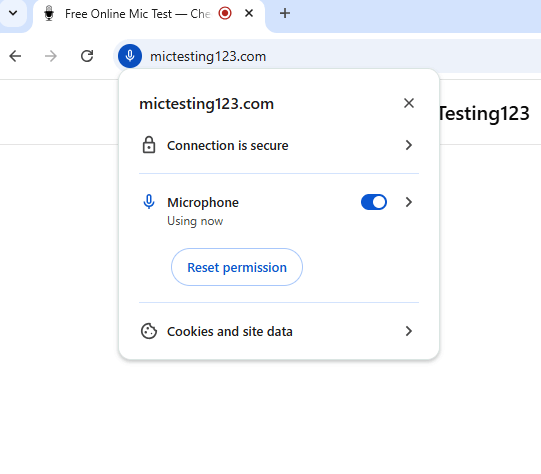
Chrome address bar — Microphone set to Allow for the site.
If you previously clicked "Block" by mistake, the site will stay blocked until you change it here.
Unmute your hardware. Many headsets and USB mics have a physical mute button or switch. Make sure it's in the unmuted position. Some laptops also have a keyboard shortcut or function key that mutes the built-in mic—check that it's not enabled.
Restart Chrome or your computer. A full restart of Chrome (close all windows and open it again) or a full reboot of your PC can clear temporary driver or permission glitches. Try this especially after changing Windows sound or privacy settings.
Try Incognito mode. Open a new Incognito window (Ctrl+Shift+N). If the microphone works there, an extension is likely interfering. Disable extensions one by one in normal mode to find the culprit, or keep using the site in Incognito if you don't need those extensions there.
2. Configure Chrome microphone settings
If the quick fixes didn't work, check Chrome's global microphone settings.
- In Chrome, click the three-dot menu (⋮) in the top right and choose Settings.
- Go to Privacy and security → Site settings.
- Click Microphone.
- Ensure "Sites can ask to use your microphone" is on (recommended).
- Under Not allowed, see if the site you're using is listed. If so, remove it or change it to Allow.
- Use the dropdown to select the correct microphone if you have more than one.
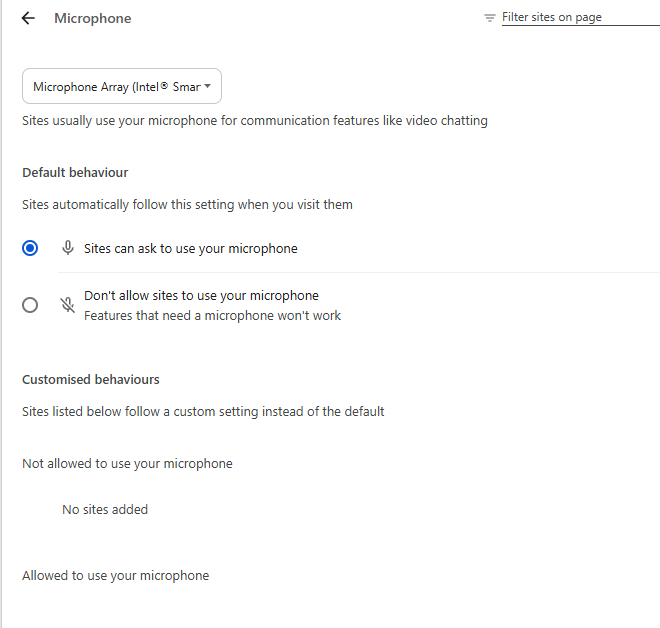
Chrome Site Settings → Microphone showing correct default device selected.
3. Adjust Windows 10 and 11 privacy and sound settings
Windows often blocks apps—including Chrome—from using the microphone for privacy. You need to turn access on and pick the right input device.
Allow microphone access (Windows 10 and 11).
- Press Win + I to open Settings.
- Go to Privacy & security (Windows 11) or Privacy (Windows 10).
- Click Microphone.
- Turn Microphone access On.
- Turn Let apps access your microphone On.
- Scroll down and turn Let desktop apps access your microphone On. This is what allows Chrome to use your mic.
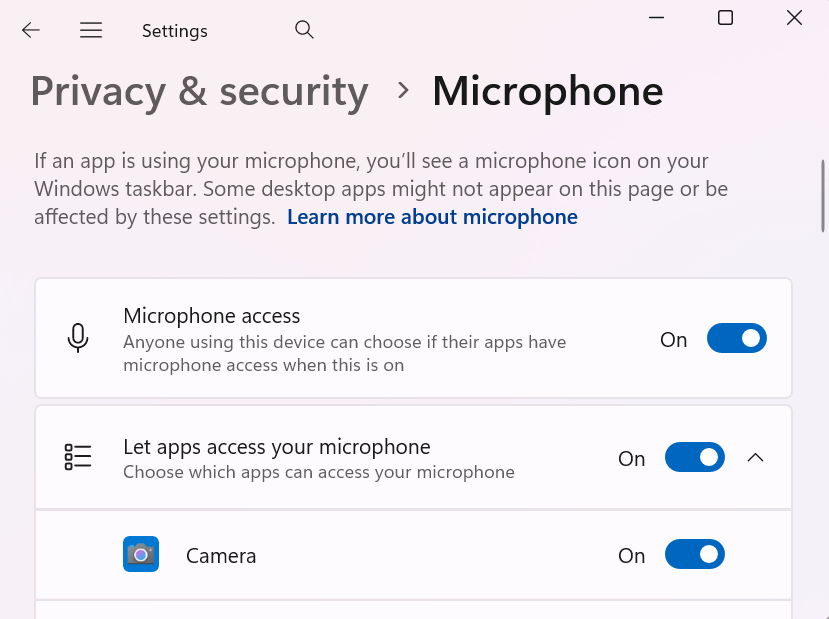
Windows Settings → Privacy & security → Microphone with access toggles On.
Set the correct input device and volume.
- In Settings, go to System → Sound.
- Under Input, check that the device you want (e.g. your headset or external mic) is selected.
- Make sure the input volume is not at zero and that the device isn't muted in this screen.
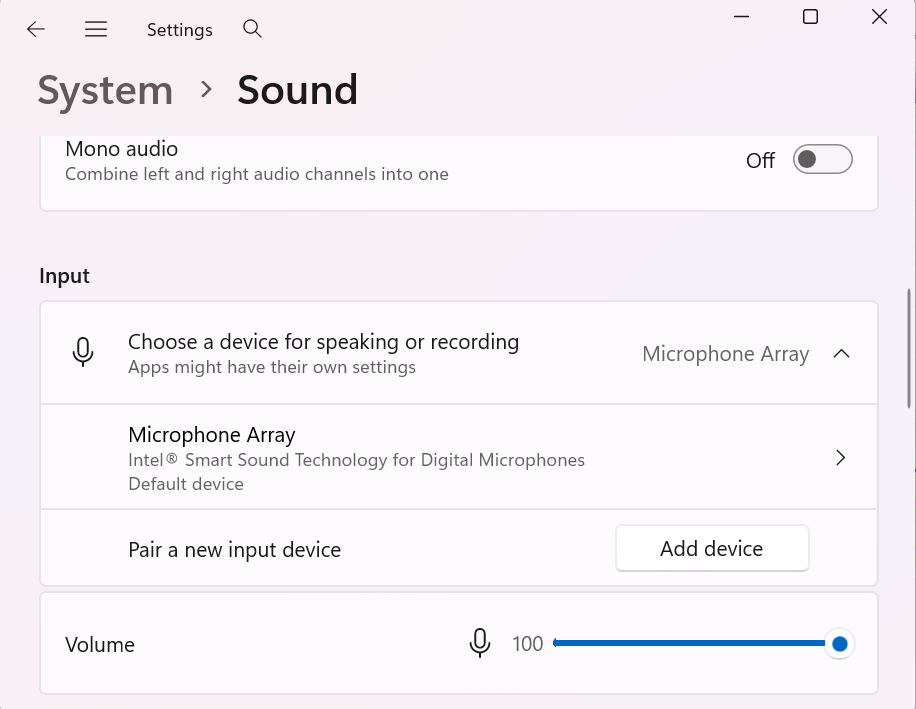
Windows Sound settings — Input device selection and volume slider.
On Windows 10, the path is Settings → System → Sound → Input. The idea is the same: correct device selected, volume up, not muted.
4. Update or reinstall audio drivers
If the microphone isn't detected at all, or the correct device doesn't appear, try updating or reinstalling the audio driver.
- Right-click the Start button and select Device Manager.
- Expand Sound, video and game controllers.
- Right-click your audio device (e.g. Realtek Audio, or your USB headset) and choose Update driver → Search automatically for drivers.
- If that doesn't help, right-click the device again, choose Uninstall device, then restart your computer. Windows will reinstall the driver on reboot.
Only uninstall if you're comfortable with that step; your sound will be gone until the driver is back after the restart.
5. Advanced troubleshooting
Use these only if the steps above haven't fixed the issue.
Disable exclusive mode (Windows). Sometimes one app "locks" the microphone so others can't use it.
- Right-click the speaker icon in the taskbar and choose Sounds (or Sound settings then More sound settings).
- Open the Recording tab, select your microphone, and click Properties.
- Go to the Advanced tab and uncheck "Allow applications to take exclusive control of this device."
- Click OK and test again in Chrome.
If audio sounds distorted or echoing, run a quick echo test to check for feedback issues.
Reset Chrome. If Chrome itself seems broken (e.g. no site can use the mic), you can reset its settings.
- In the address bar, go to chrome://settings/reset.
- Click Restore settings to their original defaults and confirm.
You'll lose extensions, saved passwords, and some preferences, so only do this if you're stuck.
Install Windows updates. Make sure Windows 10 or 11 is up to date. Go to Settings → Windows Update and install any pending updates. Newer builds often fix audio and privacy bugs.
Managed or work/school PCs. If you're on a work or school computer, your administrator may have locked microphone or privacy settings. You may not be able to change some of the options above. In that case, contact your IT support; they can adjust group policy or device settings if they allow it.
Common mistakes
- Wrong default device — Windows might be using "Default" or a different mic (e.g. a webcam mic instead of your headset). Always set the device you're actually using as the default input in Sound settings.
- Blocking the site once — If you clicked "Block" when the site first asked for mic access, it stays blocked until you change it via the lock icon or Chrome's Site settings.
- Testing in the wrong place — Make sure you're testing in the same browser (Chrome) and on the same site or app where you're having trouble; behavior can differ between apps.
- Poor or noisy sound — If Chrome detects the mic but sound quality is poor, try a quick background noise test to see what your mic is picking up.
When to suspect a hardware issue
Consider a hardware problem if:
- No level in any app — The microphone doesn't show any input level in Chrome, other browsers, or desktop apps (e.g. Windows Sound settings input level never moves).
- Cable or port — You've tried another USB port or cable (for USB mics/headsets) and the issue persists.
- Another PC — The same mic doesn't work on another computer, so it's likely the device or cable, not Windows or Chrome.
You can also verify input levels using a browser-based microphone test before replacing the device. In those cases, try another microphone if you have one, or have the device checked or replaced.
FAQ
-
Why does Chrome say "No microphone" or "Microphone access denied"?
Usually the site is blocked (check the lock icon and Site settings), or Windows has microphone access turned off or restricted for desktop apps. Go through the site permission and Windows privacy steps above. -
Does Windows 11 handle the microphone differently from Windows 10?
The main idea is the same: Privacy (or Privacy & security) → Microphone, and System → Sound → Input. Menu names and layout differ slightly; the toggles and "Let desktop apps access your microphone" are what matter for Chrome. -
Can a website block my microphone?
A site can't turn off your mic globally. It can only be blocked for that specific site—either because you chose "Block" when prompted or because it's in Chrome's "Not allowed" list for the microphone. Fix it via the lock icon or Chrome Settings → Site settings → Microphone. -
My microphone works in other apps but not in Chrome. What should I do?
That usually points to Chrome or the site. Check the site's microphone permission (lock icon and Site settings), make sure Chrome is allowed in Windows privacy settings, and try the site in Incognito to rule out extensions. If it still fails, try resetting Chrome (chrome://settings/reset) as a last resort.
Test Your Microphone with MicTesting123 (Mic Testing 123)
MicTesting123 (aka mic testing 123) is a free mic test that runs in your browser. Use it to confirm your microphone is working once you have applied the fixes above.
If you do this regularly, the Chrome extension puts a one-click mic test in your toolbar — no need to open a new tab each time.
Summary
Most Chrome microphone issues on Windows come from site permissions, Windows privacy/sound settings, or the wrong default input device. Start with the lock icon and Site settings in Chrome, then turn on microphone access and set the correct input in Windows. Update or reinstall drivers if the mic isn't detected, and use advanced steps (exclusive mode, reset Chrome, Windows Update) only when needed. If nothing responds in any app, consider a hardware or cable problem and test with another device or PC.